If you do mechanical design for a living, you’ve probably hit this one: you inherit a batch of drawings from another company, or you dig up some files from a few years back. The parts look perfectly fine—until you reference them in a drawing, and the properties fall apart. This post is about a feature I built into my own add-in, TicTools, to deal with exactly that problem: Empty Attribute—in short, a way to delete custom properties in SOLIDWORKS and wipe a legacy file’s properties clean in one click.
The Problem: Properties Living in the Wrong Place
In SOLIDWORKS, part properties actually live in two different places:
- Custom — these belong to the entire part, regardless of configuration;
- Configuration Specific — these belong to one specific configuration only.
When a drawing’s BOM or annotations pull in a property, they care about both the name and where it lives. The moment a part has old and new properties mixed together—say, the same “quantity” value stored under Configuration Specific in the old version, but expected under Custom by your current standard—the drawing references get crossed. At best you get wrong values; at worst the whole table is a mess.
This is worth stressing because it’s not just my opinion. SOLIDWORKS’ own documentation explicitly warns against putting the same property in both the Custom and Configuration Specific tabs—the software allows it, but it confuses SOLIDWORKS and shows users misleading information. That’s precisely the trap legacy files fall into.
Two situations make this especially common:
- Drawings from outside your company — their naming conventions and storage locations are a completely different system from yours;
- Legacy files from before a big standards change — the old property rules differ wildly from today’s, especially the classic “used to be in Configuration Specific, now everything goes under Custom” migration.
My takeaway from experience: rather than patching up a tangle of mixed old-and-new properties, wipe the old ones clean first, then write the new ones back in according to your current standard. A blank slate is the least error-prone starting point. That’s what this feature does.
What It Does: Clear Everything, Keep Only the Whitelist
The logic of Empty Attribute is dead simple, one sentence:
Delete all of the part’s custom properties, keeping only the ones named in the whitelist.
Note the word all—it doesn’t matter whether a property was stored under Custom or Configuration Specific, it all gets cleared. Only the names in the whitelist survive. Once the cleanup is done, the part’s properties are back to a clean, controllable state, and when you write in new properties to your current standard, the drawing references stay sane.
Why the Whitelist Is User-Configurable
This is a design choice I made deliberately. Property names are different across standards, countries, and even companies. Take “part quantity”: in one place it’s 数量, in another 零件数量, and somewhere else just QTY in English. If the whitelist were hard-coded, it would break the moment you switched environments.
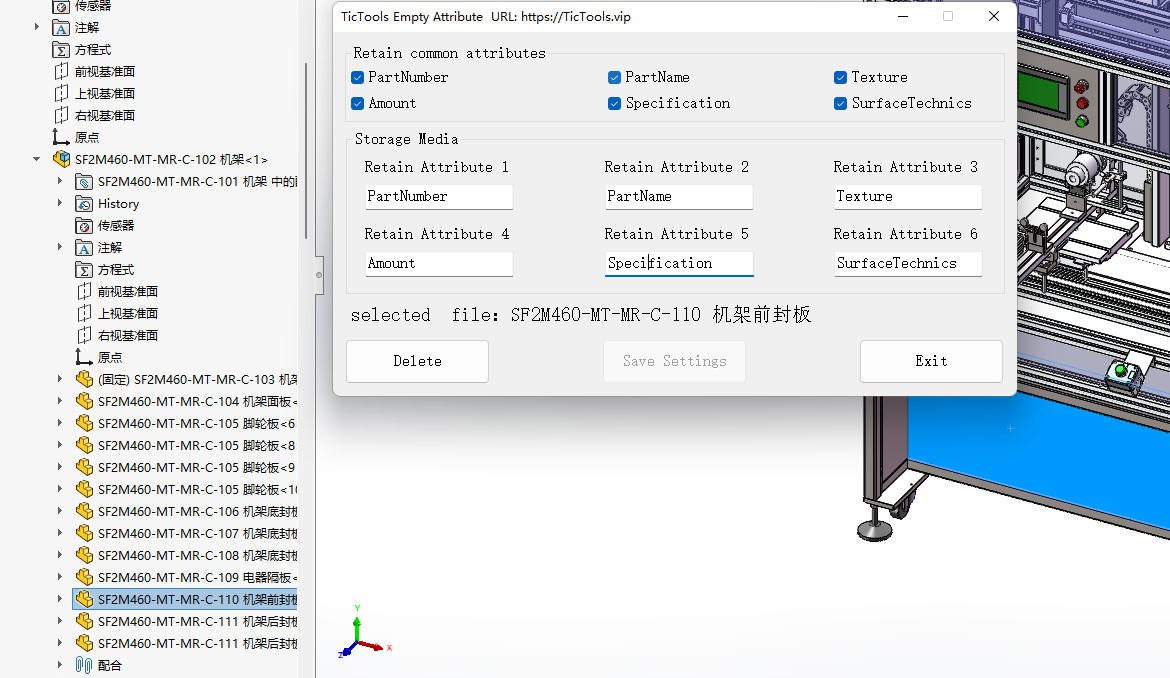
So I built the whitelist as six editable input fields—whatever you type is what gets protected. Whatever project or standard you’re working under, just fill in the property names that should be preserved for that context. Flexible by design.
How to Use It

Step 1: Open the feature
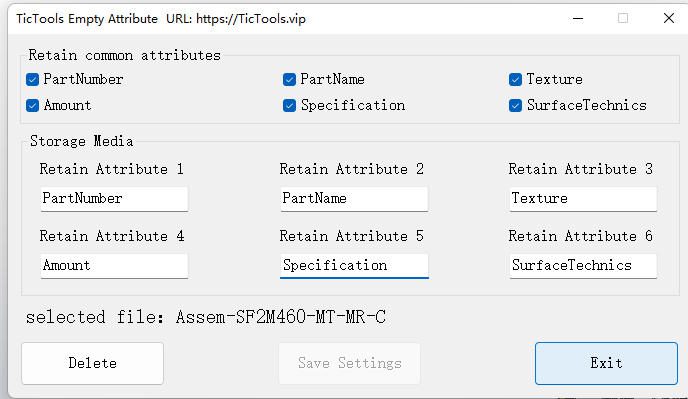
Click the Empty Attribute button on the TicTools toolbar to bring up the dialog.
Step 2: Run the cleanup
Two cases:
- In a part document: just click Delete, and the extra properties are cleared;
- In an assembly document: first select the component you want to process, then click Delete.
Step 3: Configure the whitelist (as needed)
If there are properties you don’t want deleted, type their names into the six input fields—for example PartNumber, PartName, or whatever your standard uses for “quantity.”
Once you’ve filled them in, click Save Settings. The configuration is written to the TicTools config file. It takes effect after you restart SOLIDWORKS.
💡 The whitelist is a configure-once, use-forever setting. Set it once per standard, and every cleanup afterward follows that list—no need to retype it each time.
A Few Usage Tips
- Back up first, then clear. This is a real delete. Before running it, double-check the whitelist is correct—especially the first time, or when you’ve switched to a new naming standard. Property names must match exactly:
数量and零件数量are two completely different things to it, and whichever one isn’t in the whitelist gets treated as “extra” and deleted. - Restart after editing the whitelist. The config loads on restart, so if you don’t restart after
Save Settings, this cleanup still runs against the old list. - The recommended workflow is “clear first, then write.” When you get a new or legacy file, use this feature to wipe the old properties, then write in the new ones to a unified standard—that keeps the drawing references cleanest and saves you from hunting down mismatches later.
Wrapping Up
Property chaos comes down to one thing: old and new conventions, plus two different storage locations, all piled on top of each other. Rather than patching up the mess, clear it in one click, keep only the whitelist, and write fresh. The whitelist is configurable so it works across different standards and companies.
A small feature that solves a recurring headache.