I recently ran into a genuinely interesting problem—a SOLIDWORKS component name not updating in the assembly: the same set of drawings, the same add-in operation, behaving differently on two machines. One worked perfectly, the other was broken. After some digging, the root cause turned out to be a system option almost nobody ever touches. Writing it down so I don’t trip over it again.
The Symptoms
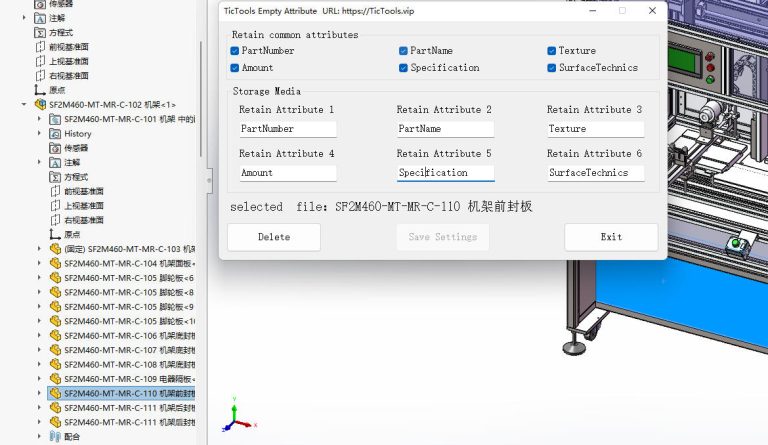
I use myself, TicTools, for renaming parts inside an assembly. I’ve used it for a long time without any trouble. But on one particular machine, this happened:
- After renaming a part with the plugin inside the assembly, the name in the FeatureManager design tree wouldn’t refresh—it still showed the old name;
- Yet when I double-clicked to open that part, the title bar and file name showed the new name—meaning the rename had actually succeeded;
- When I packed the whole set with Pack and Go and opened it on the other machine, everything displayed correctly—the new names sat right there in the tree.
The most baffling part was exactly that: same files, switch machines, problem gone. That basically rules out “corrupted files” or “the plugin wrote bad data”—the data is fine. The problem was purely a local setting on that one machine.
An Easily Overlooked Premise: File Name ≠ Component Name
To understand this, you first have to separate two things in SOLIDWORKS that look identical but really aren’t:
- File name — the name of the
.sldprtfile on disk; the part’s own identity; - Component Name — a label stored inside the assembly, used to display what the component is called in the FeatureManager design tree.
By default these two match, so day to day you never notice they’re separate. But they can decouple: change the file name, and that label inside the assembly won’t necessarily update along with it.
This is exactly what explained my weird symptoms—what I saw when opening the part was the file name (already updated), while what the design tree showed was the Component Name label stored in the assembly (still stuck on the old value).
The Key Switch: Update Component Names When Documents Are Replaced
Whether that label follows the file name is governed by this option:
Tools → Options → System Options → External References → Update component names when documents are replaced
Its two states do exactly opposite things:
- Checked: when a document is replaced or renamed, the component name in the design tree automatically follows the new file name;
- Unchecked: the two are decoupled, replacing a document won’t update the displayed name, and the label stays stuck on the old value.
TicTools is essentially doing a “rename file + replace reference” type of operation, and it depends on this option being on for the new name to propagate into the design tree. On the broken machine, this option happened to be off—so the file name changed, but the label inside the assembly didn’t budge.
Why Only This One Machine
The answer is hiding in the words “System Options”: System Options are user preferences saved per machine, per installation—they are not written into the file itself.
So:
- The file itself was fine; the new names were already correctly written into it;
- On the other machine this option happened to be on, so everything displayed correctly;
- Packing with Pack and Go also re-resolves the external references in the process, so the names lined up naturally.
In one sentence: this was never a file problem. It was that one machine’s local setting differing from the others.
The Fix
Once located, the fix is trivial:
- Open Tools → Options → System Options → External References;
- Check Update component names when documents are replaced;
- Restart SOLIDWORKS—this step matters. A component name already “frozen” on its old value often needs the references re-opened and re-resolved before it refreshes; just changing the setting without restarting may not take effect immediately;
- Reopen the assembly and confirm the names have synced.
If you just want a quick one-off refresh, you can also try: pressing Ctrl + Q in the assembly to force a rebuild, or simply closing and reopening the assembly. Also, right-clicking the very top of the design tree → Tree Display lets you switch between showing “Component Name” and “File Name”—handy for sanity-checking when things don’t match, since it helps you tell whether the label didn’t update or you’re just looking at a different display mode.