This article explains how to install TicTools and how to purchase, register, and activate your license. Please follow the steps carefully to avoid common issues (especially permission-related errors).
Installation
Step 1 — Extract the package
Extract the downloaded ZIP file using the built-in Windows tool or a third-party tool such as 7-Zip.
Please extract it to the root of a drive, for example:
C:\
We recommend avoiding desktop folders, non-English paths, or very deep directory paths, which may cause installation or runtime issues.
Step 2 — Run as Administrator (Important)
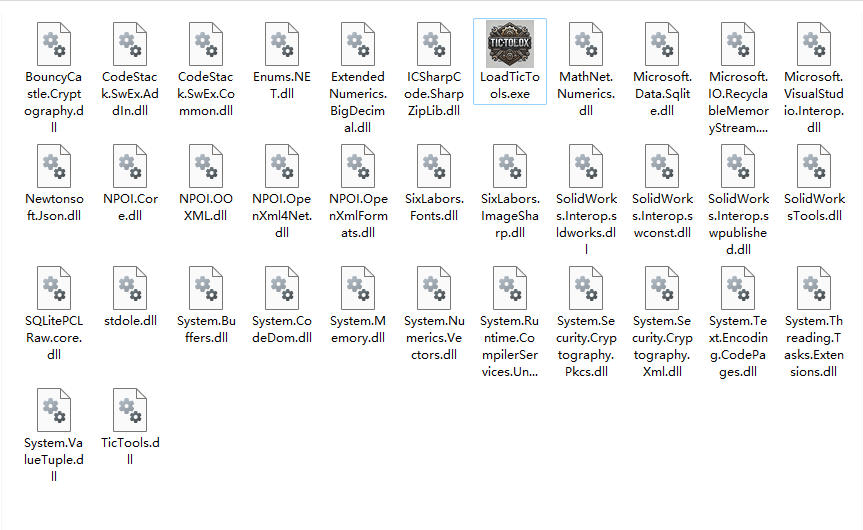
Locate LoadTicTools.exe, then right-click → Run as administrator.
Click Install to install the plugin.
Once you see the “Installation successful” message, proceed to the next step.
Step 3 — Launch SolidWorks
After installation, start SolidWorks. TicTools will be available inside SolidWorks.
Compatibility Notes
TicTools is developed based on SolidWorks 2020 and has been tested on:
- SolidWorks 2018 / 2019 / 2021 / 2024
Other versions have not been fully verified yet. If TicTools does not work properly in your SolidWorks version, please contact us—we’ll help you as soon as possible and continue improving compatibility.
Some core features require SolidWorks 2016 or later.
Purchase & Registration
Free vs. Paid Features
TicTools includes a set of features that are free to use forever.
Only a small number of advanced features require a paid license.
Purchase Process
1) Go to the purchase page and fill in your basic information.
Your email address and machine code must be accurate.
2) Get your Machine Code
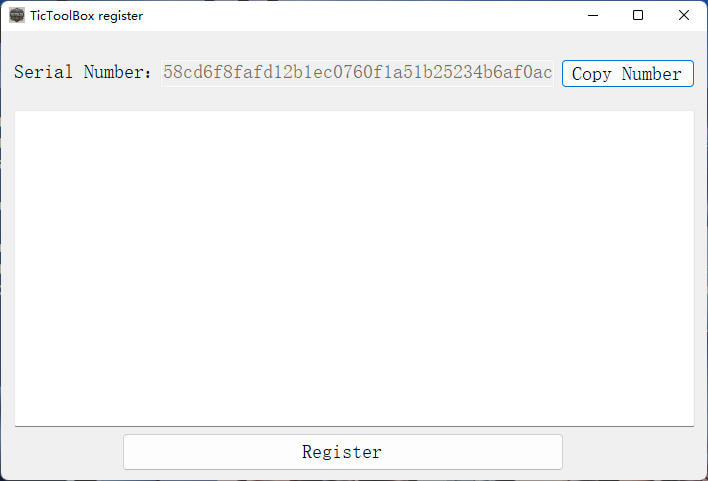
In SolidWorks, find the TicTools toolbar, then click Sign in to open the registration page.
A machine code will be generated automatically.
Click Copy Number to copy it, then paste it into the purchase page (make sure the format matches the instructions on the page).
3) Submit the order
After confirming all information is correct, submit the form.
We will generate your license file within 24 hours after receiving your email and send it to you via email.
Registration & Activation
4) Do not modify the license file
Any changes to the file content will invalidate the license.
5) Import the license file
Drag and drop the license file into the text box on the registration page.
TicTools will read the license information automatically.
6) Complete registration
Click Register to finish activation.
If everything is successful, you will be prompted to restart SolidWorks.
After Successful Registration (Important)
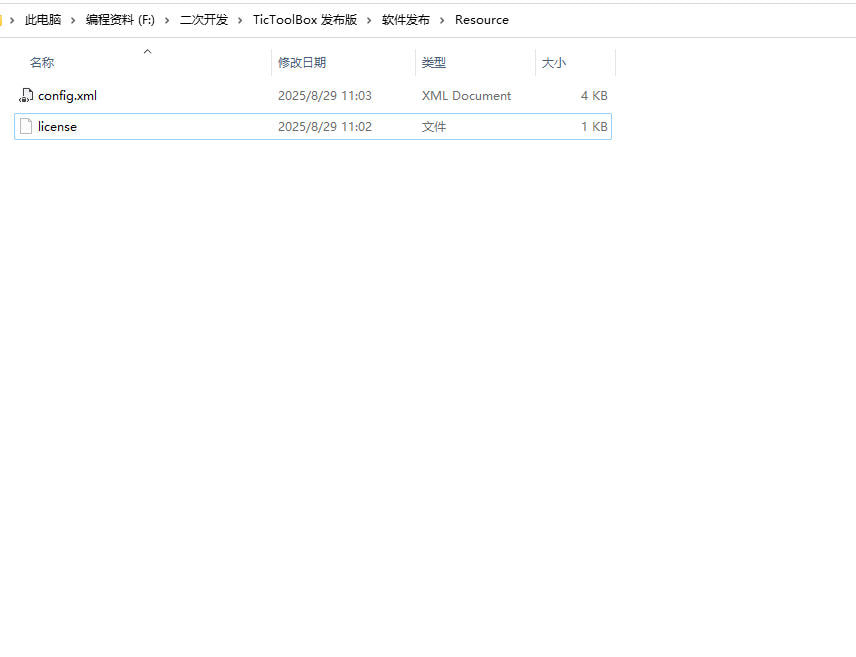
After registration, the following files will be created in the Resource directory:
config.xmllicense
Do not modify or delete these files, otherwise TicTools may fail to run properly.
✅ You’re all set—enjoy the full features of TicTools!